

Adding groups to a dynamic list in the Navigation Bar

In my previous blog post, I described how to add a dynamic list containing websites to a static Navigation Bar. In this new post, I will add groups to the list to make a clear distinction between the types of websites.
The use case
In the Navigation Bar, I have a dynamic list of websites. The Navigation Bar now looks like this:
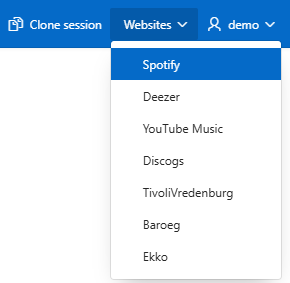
There are different types of websites, indicated by the type column in the ppt_websites table. These are music streaming services (type S), music collection sites (type C) and concert venues (type V). I would like to divide the several types of websites into distinct groups, separated by a group header.
The query
My original query was just a select from the ppt_websites table:
select 1        list_level
,      name     label
,      url      target
,      null     is_current_list_entry
,      null     image
,      null     image_attribute
,      null     image_alt_attribute
,      null     attribute1
,      null     attribute2
,      null     attribute3
,      null     attribute4
,      null     attribute5
,      '_blank' attribute6
from   ppt_websites
order by id
Now I must add the three group headers, using a select distinct type from the same table, and combining this with the original query using a union all. I must use the type column, to be able to sort the rows, but it should not show in the final select (there I can only have the columns needed in the dynamic list), so I must use a subquery:
select 1        list_level
,      name     label
,      url      target
,      null     is_current_list_entry
,      null     image
,      null     image_attribute
,      null     image_alt_attribute
,      null     attribute1
,      null     attribute2
,      null     attribute3
,      null     attribute4
,      null     attribute5
,      '_blank' attribute6
from   (select name
        ,      url
        ,      type
        from   ppt_websites
        union all
        select distinct
               case type
                 when 'S' then '- Streaming services'
                 when 'C' then '- Collections'
                 when 'V' then '- Concert venues'
               end name
        ,      '#' url
        ,      type
        from   ppt_websites
       )
Because the group headers will not have a link to a website (I will disable them later), I just use a # as a placeholder for the URL.
Then I must sort the overall query in the order group header - group details. The order by clause will look like this:
order by type
,        case url when '#' then 1 else 2 end
The first column will ensure that the types are grouped together, the second one will place the group headers before the details.
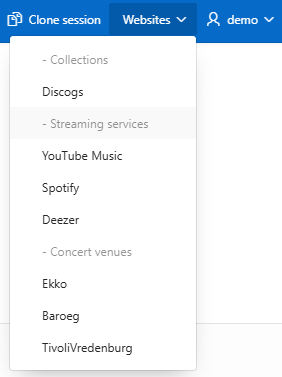
The Navigation Bar now looks like this:
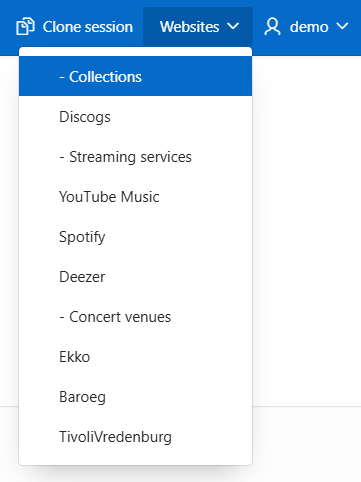
The headings are visible and in the right place, but they are still clickable. I would like to have them disabled because there is no URL attached to them.
Changing the template
The standard Navigation Bar template does not have a disabled attribute. Fortunately, we can change the template to include this attribute.
Therefore, I navigate to Shared Components => User Interface => Templates. In the report, which in my case lists 76 templates, I narrow down the selection to Type List Templates:
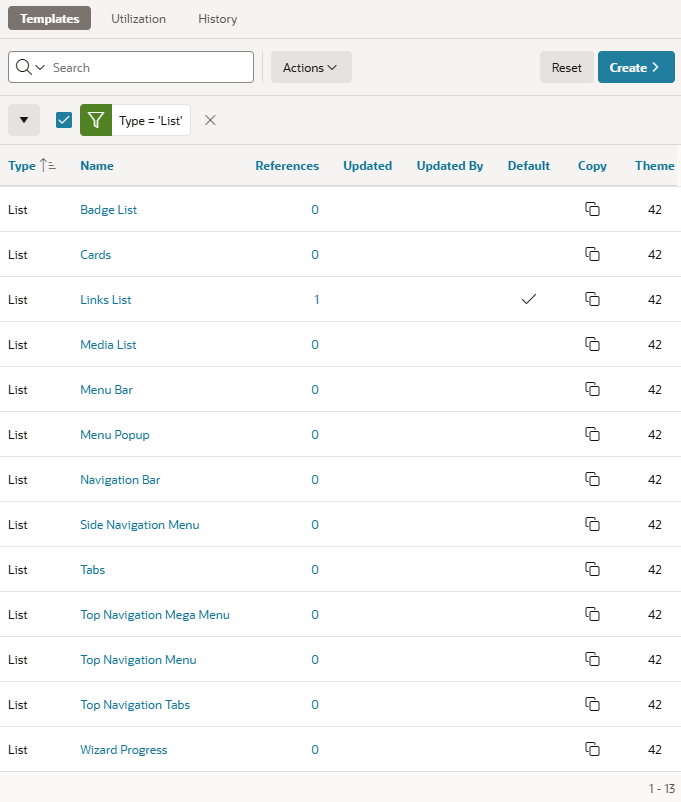
As we would expect, "Navigation Bar" is the template that is used by the Navigation Bar. Best practice is to not edit this template, but to make a copy and make changes in the copy. So, I press the Copy button in the Navigation Bar row, and a popup shows where I enter the New Template Name, "Navigation Bar custom", and then I press Copy.
The new Template "Navigation Bar custom" now shows in the list of templates. I click on the name to open the Edit List Template page, and I navigate to the Attribute Descriptions section:
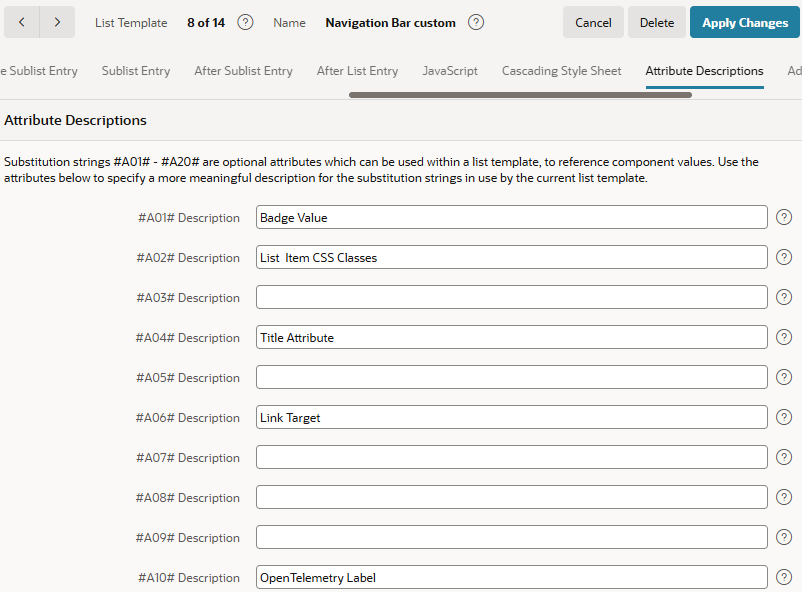
Indeed, there is no "Disabled" attribute. I decide to use the empty #A03# slot to this end, so I fill in "Disabled", and click Apply Changes.
Now I must put the HTML disabled attribute in the <li> tags of the template. These can be found in the Sublist Entry section, so I navigate there:
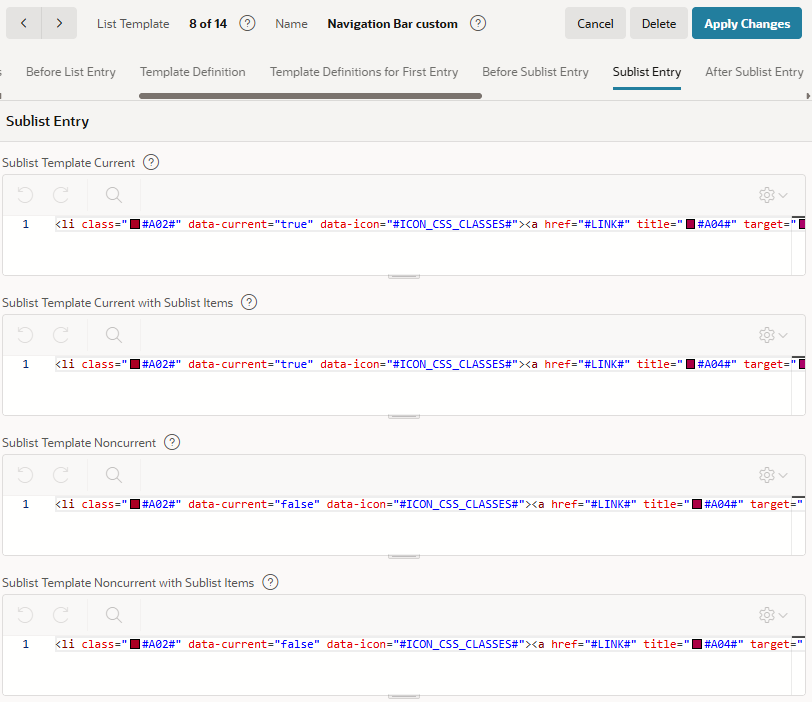
There are four Sublist templates. In each one, I add the disabled attribute as a custom attribute 3, the code being data-disabled="#A03#":
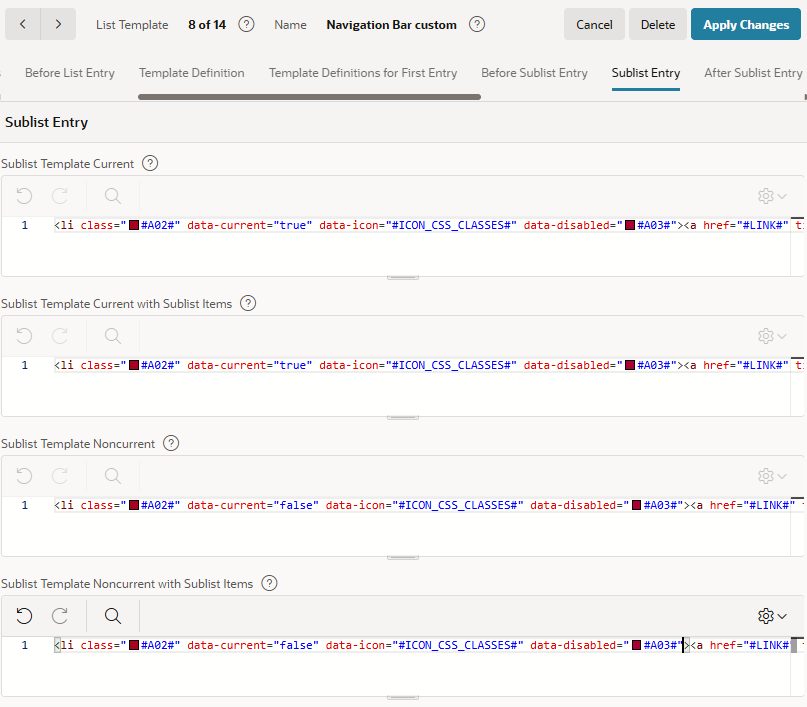
Then I click Apply Changes to store the template changes.
In my dynamic websites list I can now add a custom attribute 3, with a value "true" for the group headers and "false" for the website links. I change my query to:
select 1        list_level
,      name     label
,      url      target
,      null     is_current_list_entry
,      null     image
,      null     image_attribute
,      null     image_alt_attribute
,      null     attribute1
,      null     attribute2
,      case url
         when '#' then 'true'
         else 'false'
       end      attribute3
,      null     attribute4
,      null     attribute5
,      '_blank' attribute6
from   (select name
        ,      url
        ,      type
        from   ppt_websites
        union all
        select distinct
               case type
                 when 'S' then '- Streaming services'
                 when 'C' then '- Collections'
                 when 'V' then '- Concert venues'
               end name
        ,      '#' url
        ,      type
        from   ppt_websites
       )
order by type
,        case url when '#' then 1 else 2 end
Now there is one more thing I must do: the Navigation Bar uses the Navigation Bar template, but I must change that to my new custom template.
So I navigate to Shared Components => User Interface => User Interface Attributes, and within this page I navigate to the Navigation Bar section:
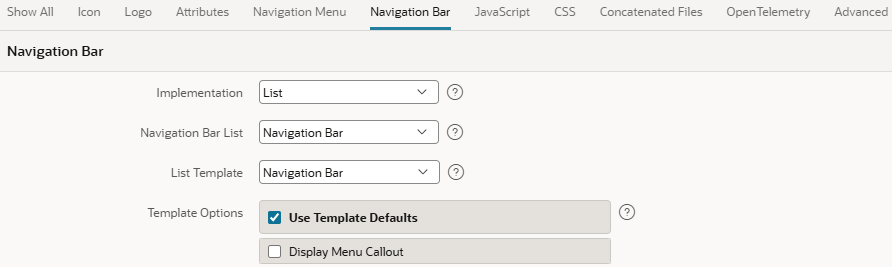
Here I change the List Template to Navigation Bar custom:
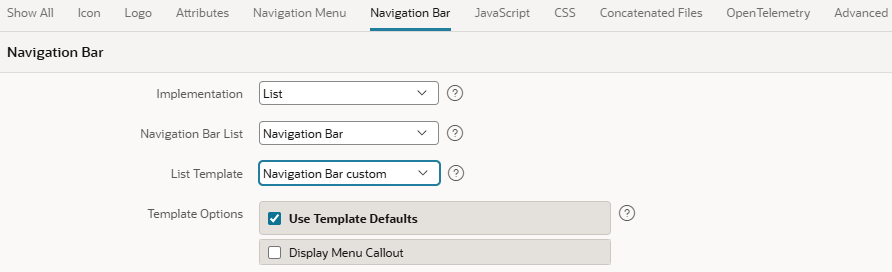
Then I click Apply Changes. Now when I run the page, I see that the group headers are disabled:
Comments
Join the discussionNo comments yet. Be the first to comment.